

Why did your printer suddenly stop working?
5 warning signs and how to fix them before it's too late 🛠️
Has this ever happened to you? You have an important file that needs to be printed immediately, you press the "print" button, and suddenly... complete silence!
🛑 Nothing is more frustrating than a printer crashing at the most crucial moment. Whether you're a student needing to submit your research or project, or an employee preparing a report, a printer malfunction can feel like a conspiracy against you. But the good news is: 90% of printer problems can be resolved in minutes without needing an expert. In this article, we'll reveal the top 5 warning signs your printer gives you before it stops working, and how to handle them professionally.
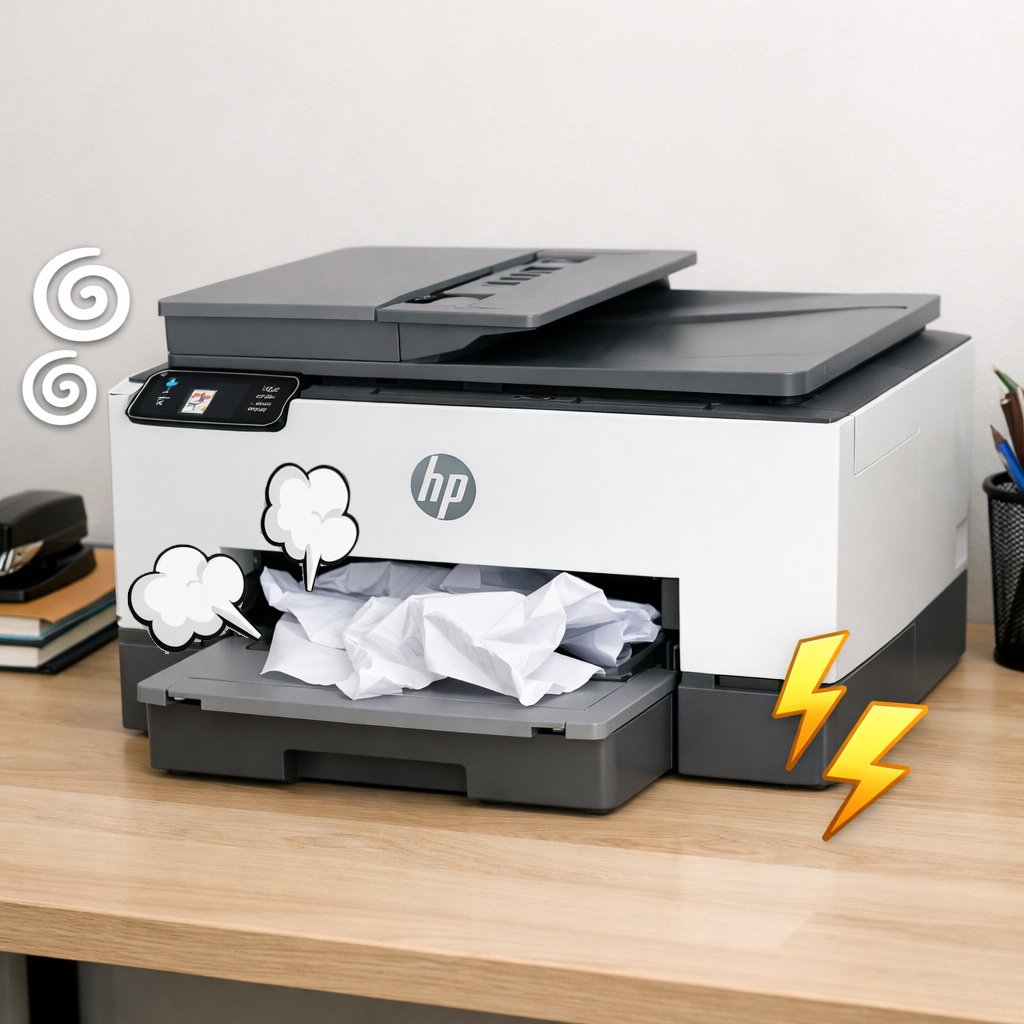
1. "Paper Jam": The recurring nightmare 📄💥
This is the number one problem worldwide. The printer makes an annoying noise and the lights stop flashing. The hidden cause: Often, the problem isn't the paper itself, but rather old paper crumbs stuck in, or using poor-quality, damp paper. The quick fix:
- Never pull the paper violently (this breaks the internal gears).
- Open the back cover and gently pull the paper out in its natural exit direction .
- Golden tip: Use high-quality paper and store it in a dry place (humidity makes the paper stick together).
2. The print is faded or has white lines 👻
Do your documents look like they came from the old fax machine era? This means your print head is clogged. Why does this happen? Leaving your printer unused for a long time causes the ink inside the micro-needles to dry out. How do you fix it?
- From your computer's printer settings, select the "Head Cleaning" option.
- Print the test page.
- If the problem persists, it may be time to replace the ink cartridge with a new and reliable one.
💡 Important information: Poor quality inks cause printhead clogging 3 times faster than high quality inks.
3. The printer is "offline" even though it is plugged in 🔌
You see the printer in front of you, and the cable is connected, but the computer insists it's "disconnected." Here's how:
- Check the USB cable (try another port).
- If it is a wireless (Wi-Fi) printer, restart both the router and the printer.
- Most often, the problem lies with the printer drivers . Visit the manufacturer's website and download the latest driver update.
4. The printer pulls more than one sheet of paper at a time 📚
This problem wastes paper and causes jams. Cause: The rubber part responsible for pulling the paper (separation pad) may be worn or dusty. Solution:
- Clean the pulleys with a cloth slightly dampened with rubbing alcohol.
- "Air" the stack of papers before placing it in the drawer to break up the static sticking between the papers.
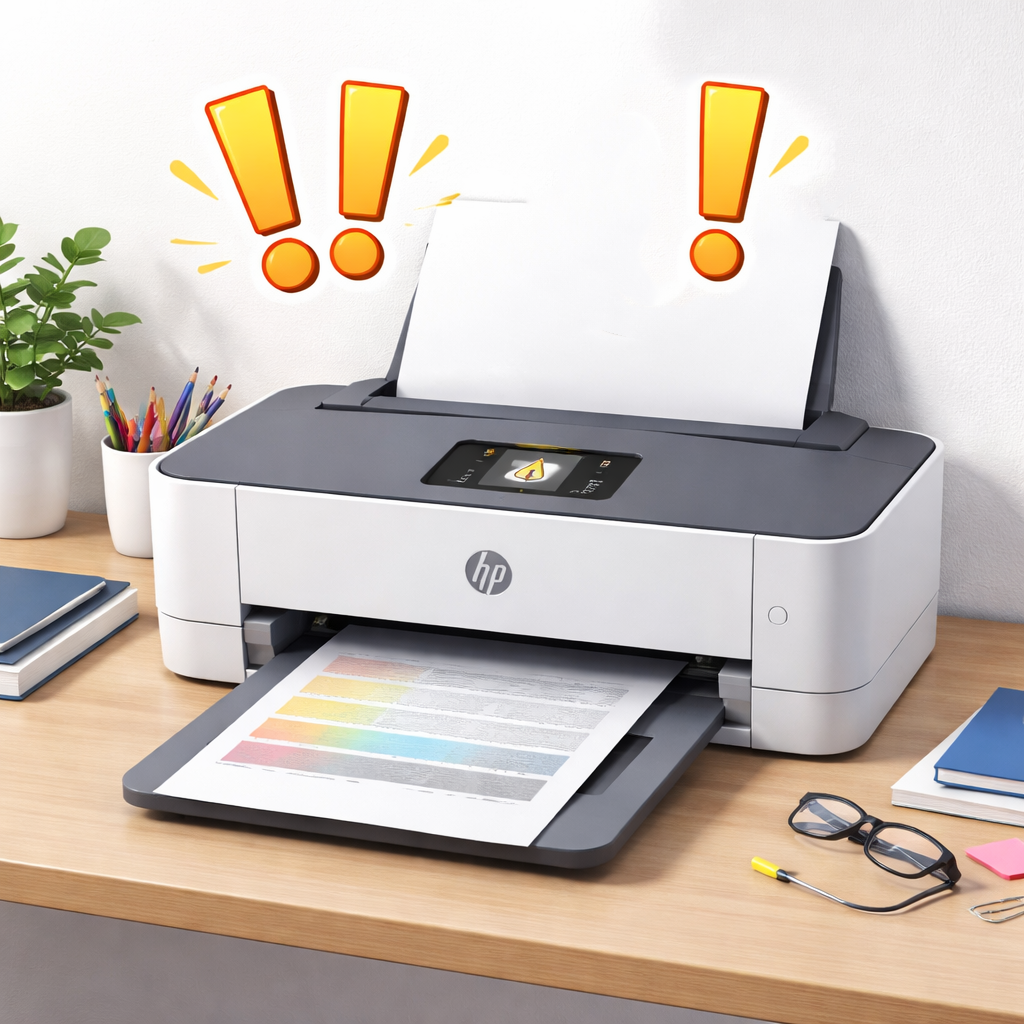
5. The "low ink" light comes on too early 🚨
Did you just buy ink and the light is on? Don't worry, the printer isn't lying, but it might be "confused." The technical secret: Some printers retain a memory of the old cartridge. The solution:
- Perform a "Reset" for the printer (unplug it for one minute and then plug it back in).
- Make sure you purchase high-quality compatible inks that contain a new smart chip , so that the printer can read them correctly.
When should your printer be retired? 🏁
Regular printer maintenance can save you hundreds of riyals annually. Keeping your printer clean, using good quality paper, and choosing reliable ink cartridges is the key to trouble-free printing.
However, if the repair cost is close to 50% of the price of a new printer, it is better to buy a new device with newer specifications.
In conclusion, are you having trouble finding the right ink that won't cause problems for your printer? Contact us or browse our store , Amwaj Al-Bahr , now, and choose the right ink for your device with guaranteed quality and high performance. Don't let your printer stop you from working!